
MAGI-2 Video Examples — Real Clips, Prompts and Settings
Explore 9 MAGI-2 video examples with the exact prompts and settings behind each finished scene. Compare dialogue, camera motion and environmental sound, then open a clip to study the full render and reuse its direction in the studio.
Browse MAGI-2 video examples
Parameter legend5s · 16:9 · Image to Video · Native AudioDuration, frame shape, generation mode and sound setting.

Moonlit Paper Sailboat
A slow tracking shot follows a pink paper sailboat across moonlit water, with synchronized ripples.
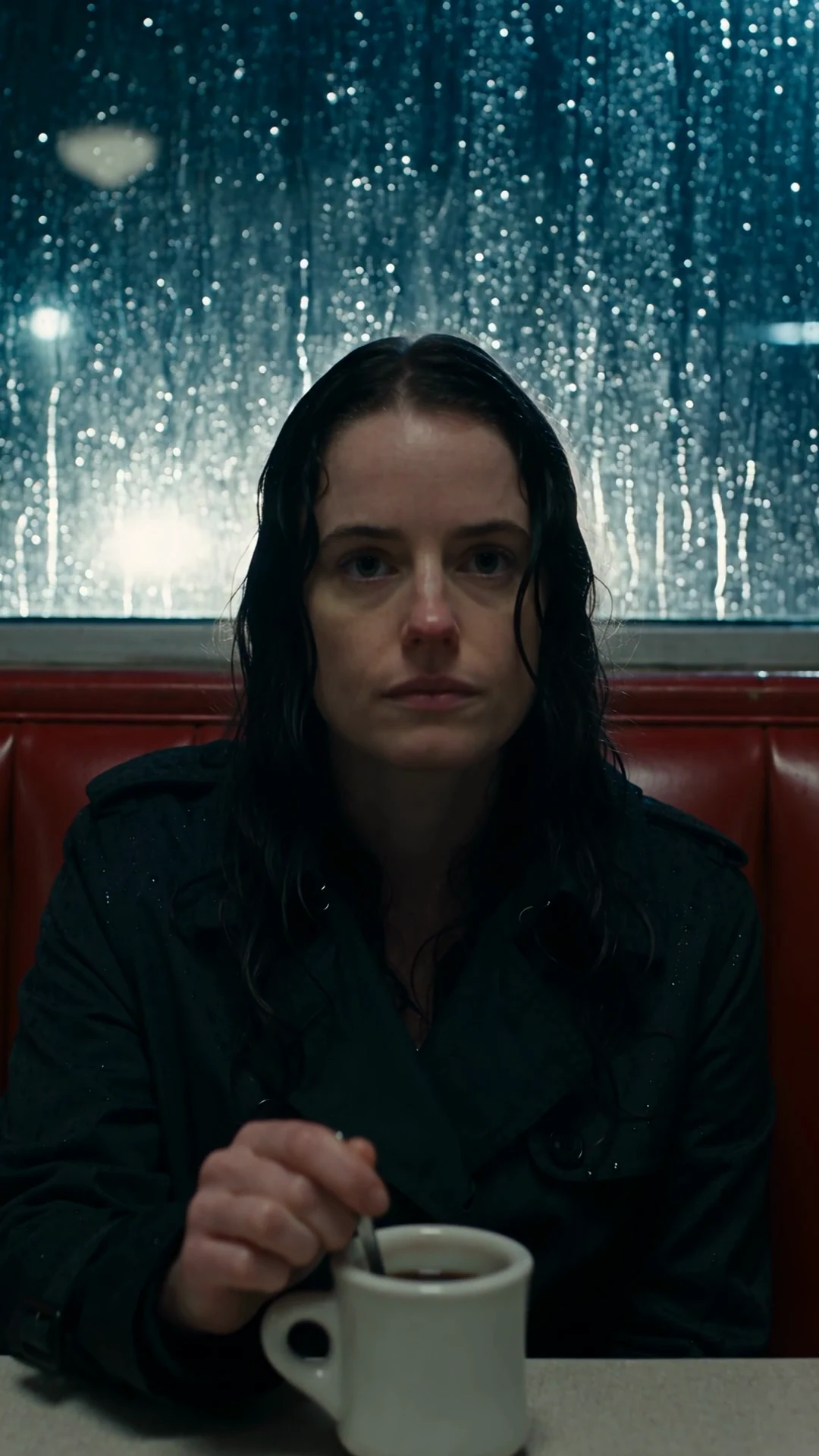
Late-Night Diner Dialogue with Lip-Sync
Lip-synced spoken dialogue paired with rain and neon ambience in a single generation.

Artisan Espresso Commercial Pour
Crisp studio lighting, liquid physics, and synchronized acoustic foley for short ads.
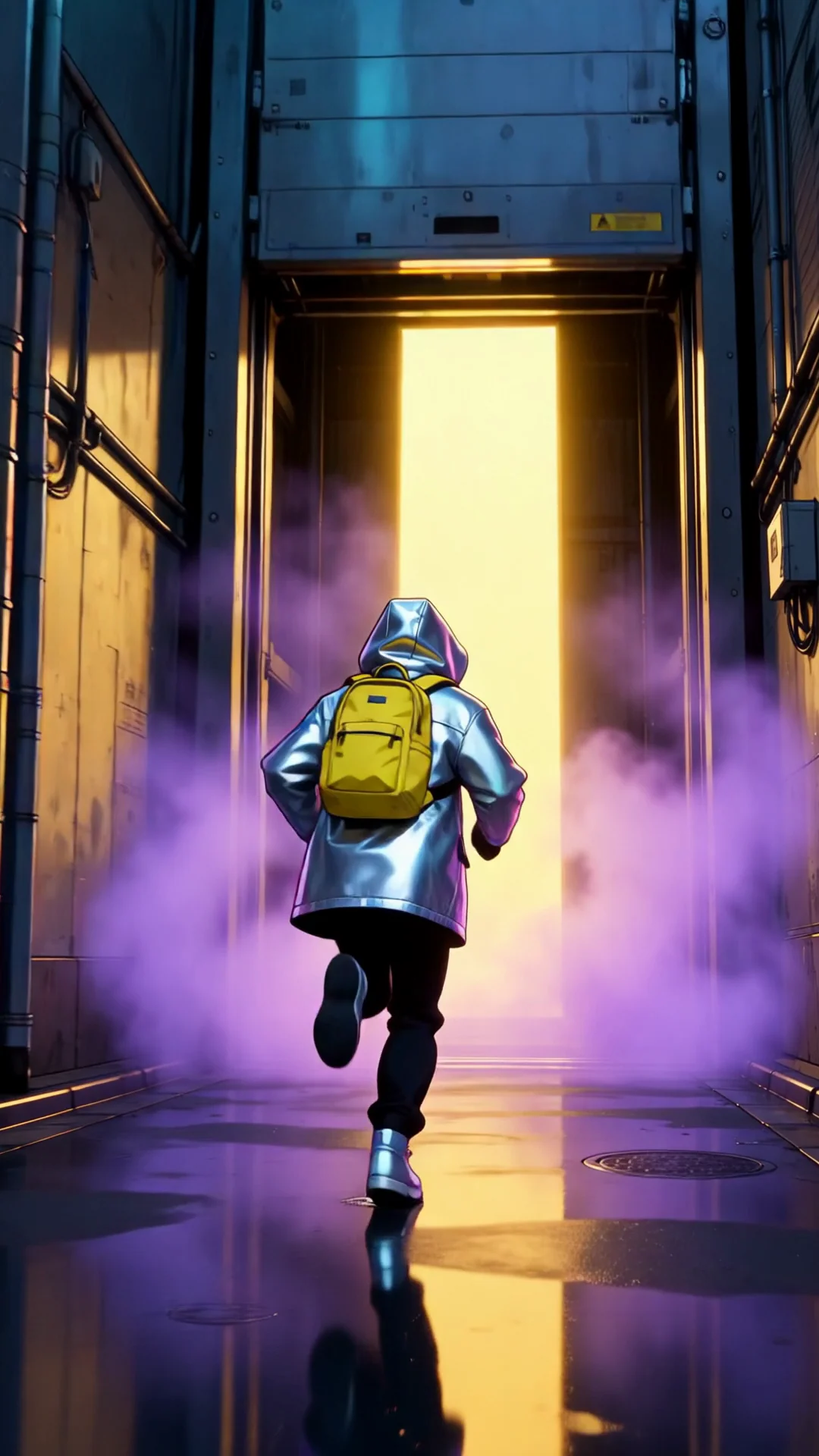
Neon Courier at the Freight Lift
A hand-drawn anime chase with a timed cut and a cyan-to-gold color transition.
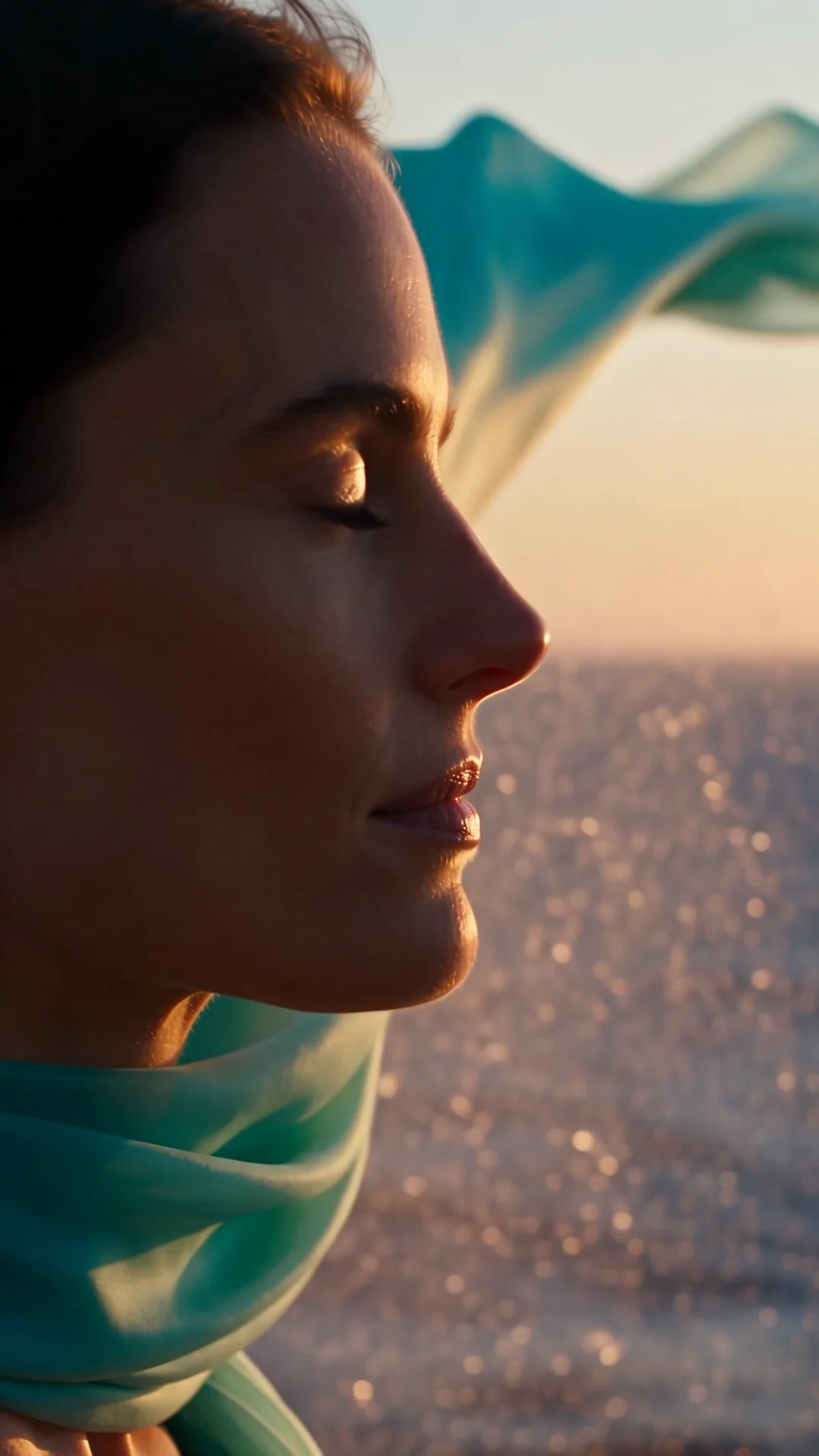
Sea Glass Sunset
A vivid coastal portrait with sunlit mist, windblown hair, and a single camera arc.
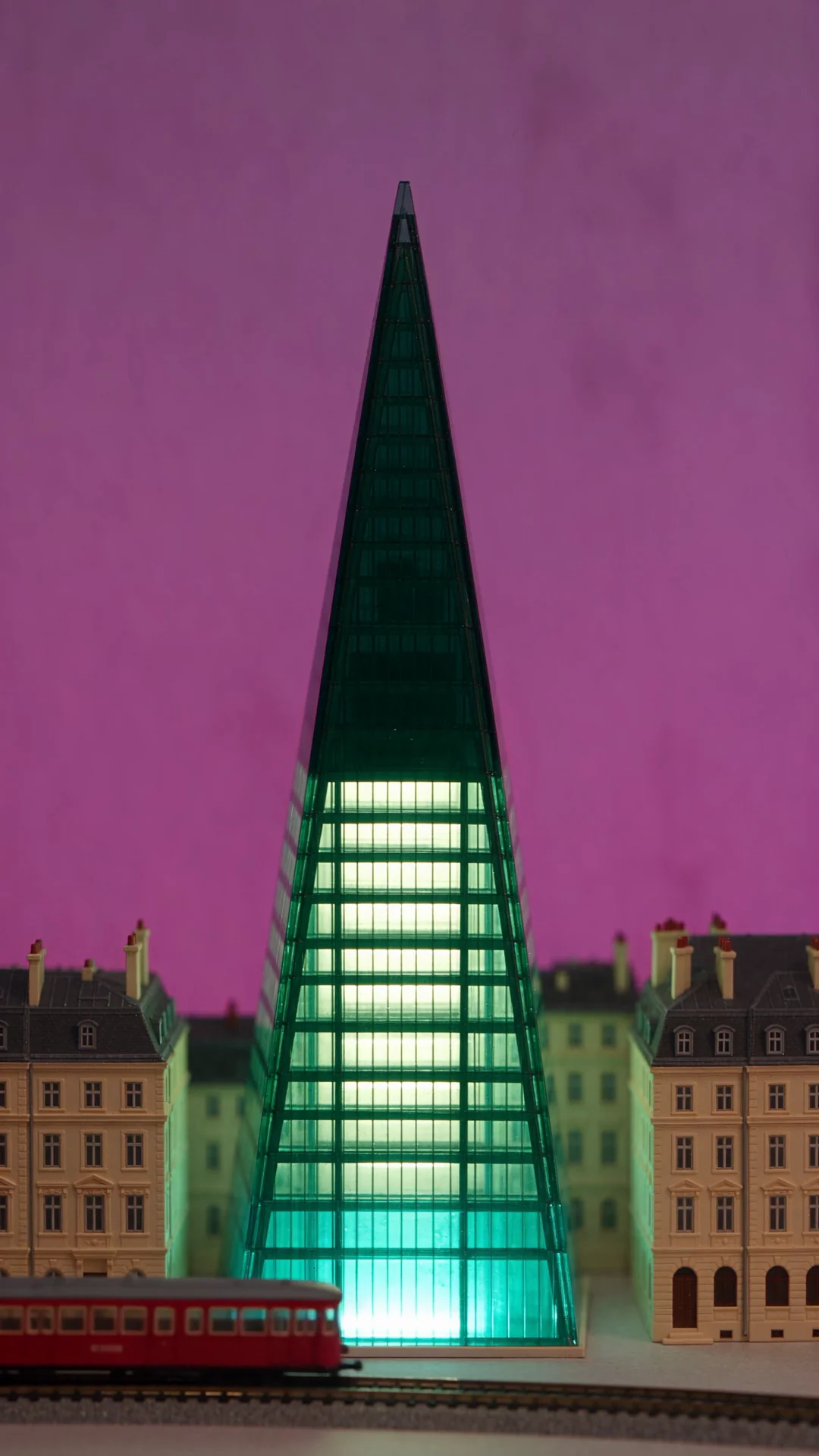
A City in One Sunset
A miniature tower moves from amber afternoon to a violet night in a locked timelapse.
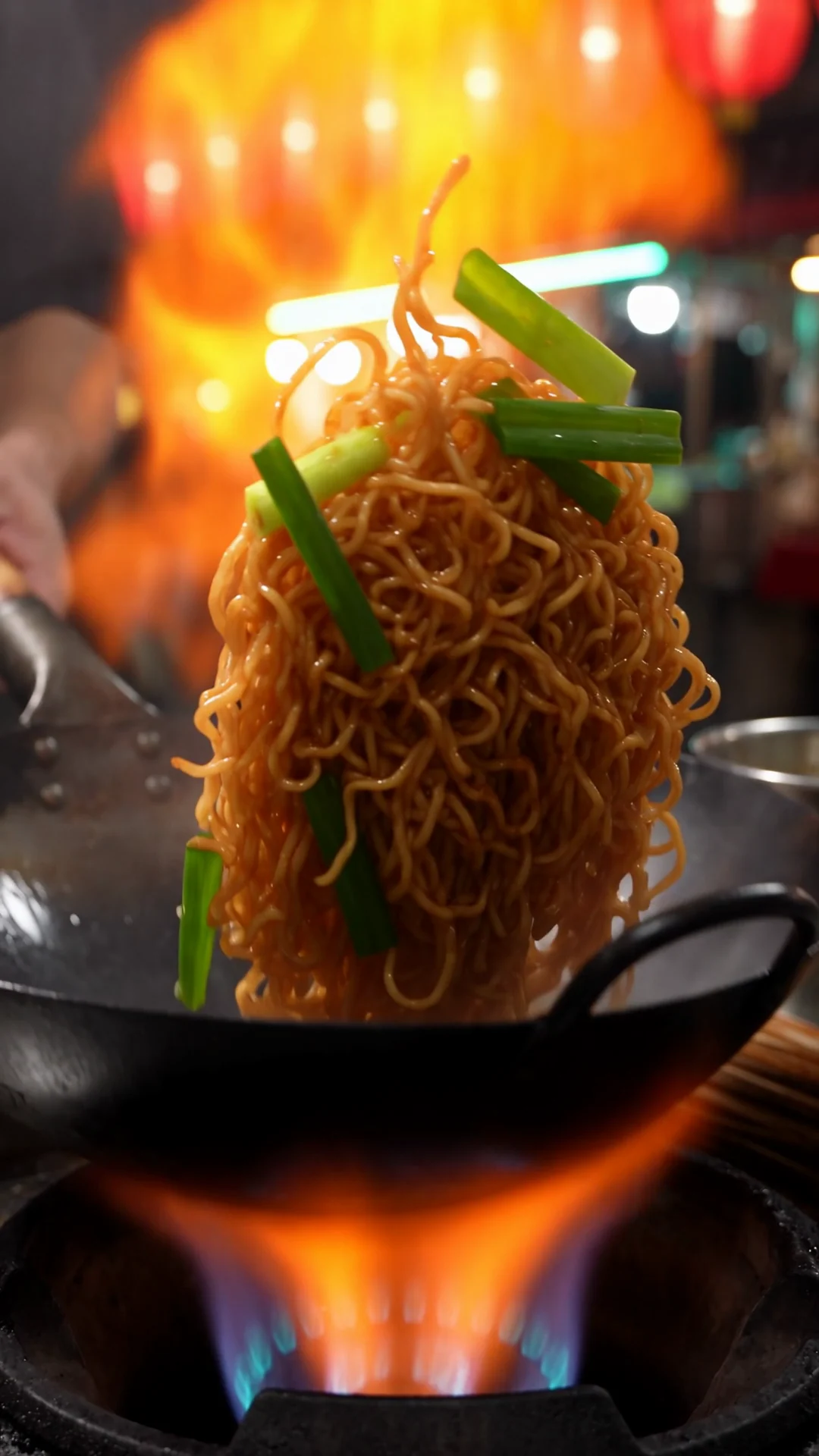
Firelight Wok Toss
A night-market close-up with glowing lanterns, a single wok toss, and synchronized sizzle.
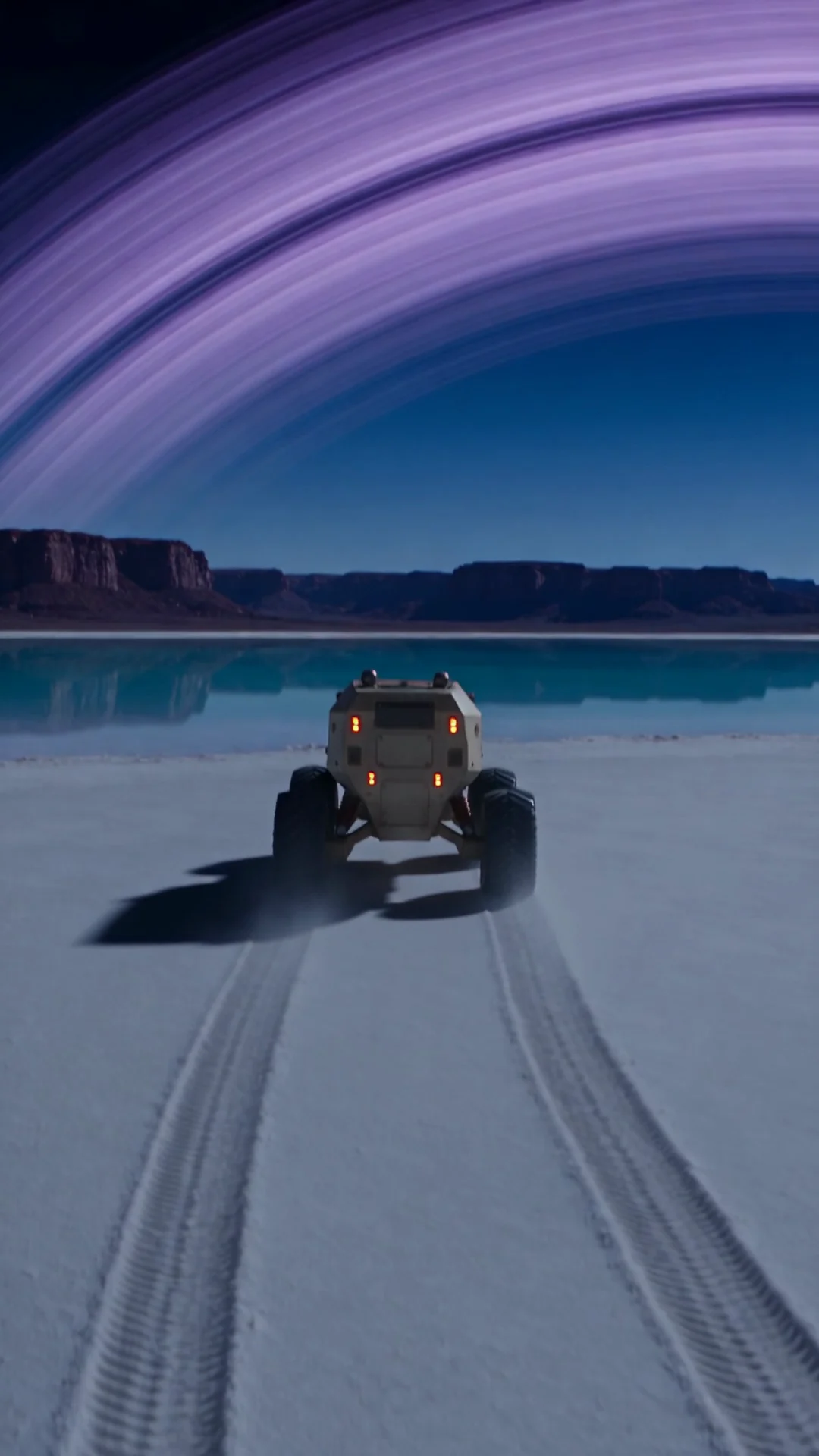
Salt Flats Under a Violet Ring
A rising science-fiction shot reveals salt tracks, electric-blue reflections, and a planetary ring.
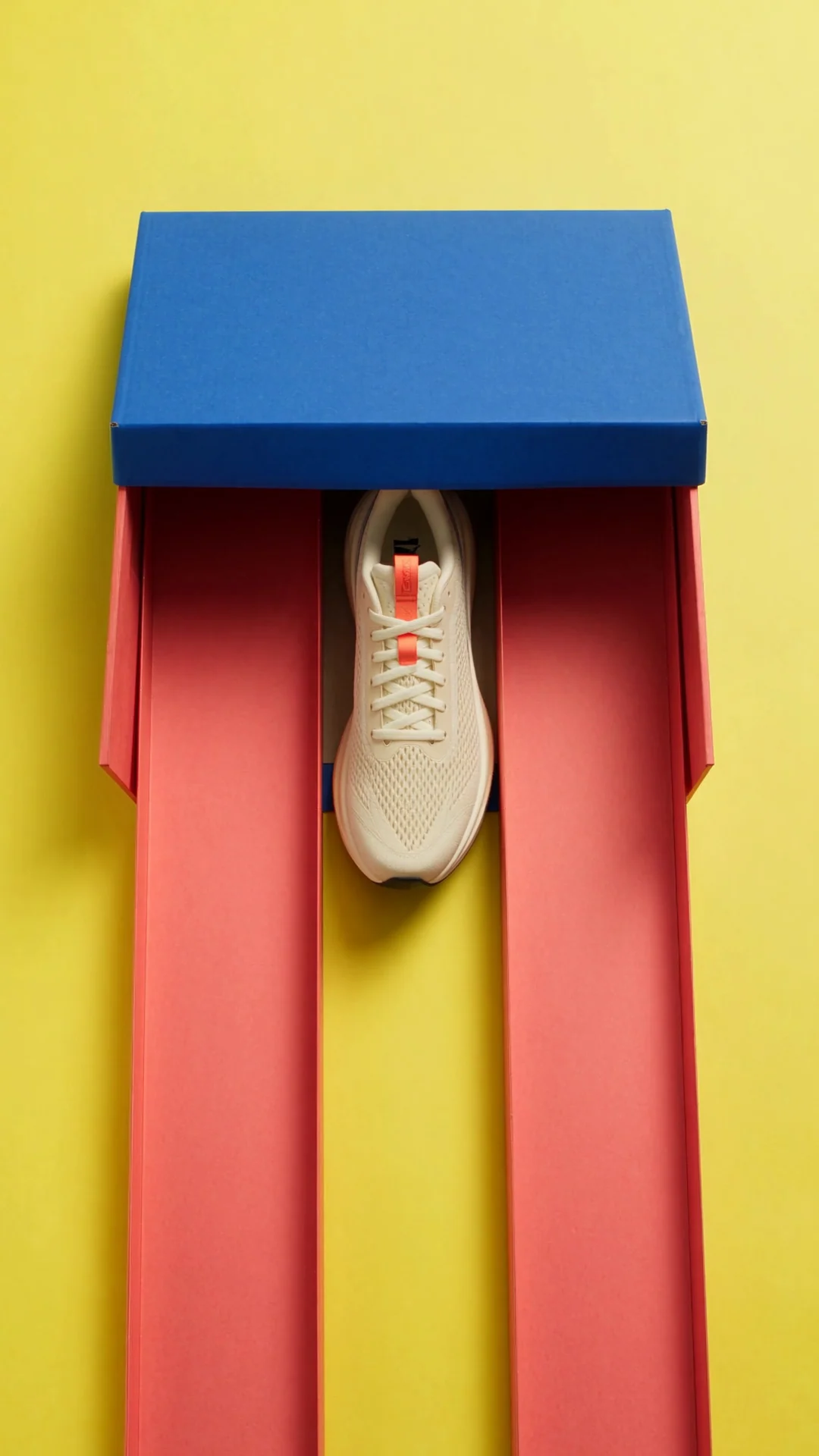
Unbox the Starting Line
A colorful paper stop-motion product reveal with crisp mechanical foley and a short voiceover.
Submit a clip for review
We consider original work that shows a clear technique, such as a shot held through a line of dialogue, sound synced to a physical action, or a reference image that guides the result. Send a playable link, the full prompt, your settings and any inputs you have permission to share.
Cutune reviews submissions by hand and chooses a small number for this AI video gallery. Selected entries include a credit line, permission from the creator and enough context for readers to understand how the clip was made.
Gallery FAQ
Are these clips unedited?
Each detail page plays the published render associated with that example. The cover in the collection can use a closer crop so you can identify the subject, while the detail player shows the full composition and audio. In multi-shot pieces, a cut may be part of the original direction. Read the prompt alongside the clip to see which changes in camera angle or timing were requested.
What settings were used?
The case page records the mode, duration, aspect ratio and audio setting. A seed appears when one was recorded. When a generation used an image, the input area can identify the opening frame, ending frame or visual reference separately. That distinction matters if you are trying to reproduce a composition. A cover represents the published scene. Only an image listed under its inputs was supplied for the render.
Can I reuse a prompt from the gallery?
Yes. Open a clip to copy the full instructions or preload the scene in the studio. The full prompt preserves details that the short caption leaves out, including dialogue and sound cues. If you adapt a scene, keep the direction you want to study and change one part, such as the light or camera movement. This gives you two AI video examples with a clear point of comparison.
Why does my result look different?
A prompt describes the requested shot, so separate renders can interpret timing, facial movement or sound differently. Generation mode and input images can also change how the composition is framed. Compare the full prompt and settings before attributing a difference to one line. To see what a revision changes, start with the same aspect ratio and audio setting and compare the same moment in both clips.
Can I submit my own clip?
Yes. Send the submission email with a playable link, the full prompt, the settings and a short note about what your clip demonstrates. Include the credits you want displayed and confirm you can share the video and any source assets. Cutune reviews submissions by hand and selects a small set for publication. You can use a private preview link when applying for review.
Are these examples free to remix?
You can read and reuse the written prompts in the collection for free. Creating a fresh clip uses the credits shown in the studio before generation. If an example used a source image, start with your own image or one licensed for your intended use. For community pieces, check any attribution or reuse terms on the detail page before sharing an existing clip or its inputs.